How to Improve Chinese and English Text in Z-Image
A transparent prompt workflow for AI typography, including our failed Chinese-sign test, exact seed, practical fixes, and when to finish text in a design tool.
By Z-Image Photo Editorial Team
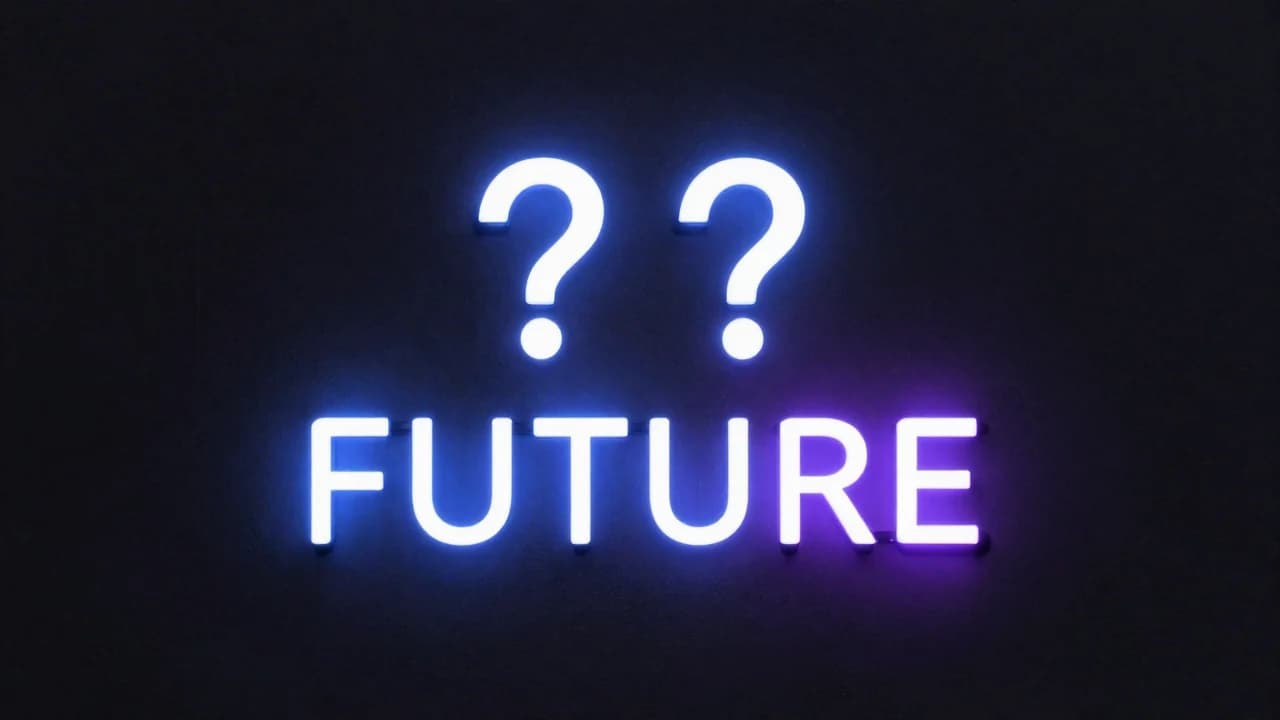
Z-Image is designed for Chinese and English prompt understanding and text rendering, but “supports bilingual text” does not mean every requested character will be correct. Our own cover test is a useful example: the English word FUTURE rendered correctly, while the requested Chinese characters 未来 became two question marks.
842063. We made two attempts with increasingly strict instructions. Both preserved the English word but replaced the two Chinese characters with question marks. We kept the failed result rather than substituting a hand-edited success.
Use a constrained text prompt
Text generation becomes harder as the number of words, languages, signs, and decorative elements increases. Begin with one text object and state exactly what it contains.
Front-facing dark storefront sign. The sign contains exactly the Chinese characters "未来". Large white sans-serif lettering, centered. No other text or symbols.
Put the exact text in quotation marks
Quotation marks separate the required lettering from the visual description. Use the exact characters you want; do not provide several alternative spellings in the same prompt.
Specify placement and hierarchy
Say “one line centered at the top” or “two lines, Chinese above English.” Avoid vague requests such as “add some futuristic Chinese text,” which leave both wording and layout undecided.
Reduce competing detail
A busy night market with ten signs is a difficult typography test. A single front-facing sign on a plain wall is easier to inspect and regenerate.
A practical correction loop
- Generate one short phrase at a simple angle.
- Inspect every character at full resolution.
- If it fails, remove secondary objects and request fewer words.
- Try a new seed; seed changes can affect lettering as well as composition.
- For client work, replace or typeset the final copy in a design tool.
When AI text is appropriate
Generated lettering can work for ideation, background signs, fictional brands, and early poster concepts. It should not be trusted without review for packaging ingredients, prices, safety notices, legal copy, trademarks, or important public information.
What this test tells us
The result supports a more precise conclusion than “perfect bilingual text.” Z-Image understood the requested layout and rendered the English word, but it did not reproduce the Chinese characters in this seed. That is useful capability with a real quality-control requirement.
Try a simpler phrase in the AI image generator, or compare how prompt complexity changes other outputs in our model comparison framework.
Sources and test record
The cover image was generated with Z-Image using seed 842063. AI-generated images and lettering can contain errors; inspect outputs before publishing.
Show the cover prompt
Front-facing minimalist neon sign with exactly two lines: the simplified Chinese characters "未来" above the English word "FUTURE", large clean lettering, no other symbols, blue and violet glow.
Try these ideas in the generator
Open the AI image generator and test the prompts, styles, and text-to-image workflows from this article.
Related Articles
Keep exploring more prompt guides, model comparisons, and AI image generation tutorials.

50 Z-Image Turbo Prompts Tested: What Actually Works
Patterns from 50 documented Z-Image generations across portraits, products, architecture, fantasy, illustration, nature, and text-bearing scenes.
Best Z-Image Prompt Structure: Subject, Light, Camera and Composition
A practical Z-Image prompt order that turns vague style requests into visible direction for subjects, lighting, camera, composition, materials, and constraints.
Common Z-Image Prompt Mistakes and How to Fix Them
Fix vague quality words, conflicting lights, overloaded scenes, ambiguous counts, plastic skin, impossible reflections, and unreliable generated text.